

Invites
In the app: sidebar → Team → Invites (app.orvind.com/org/invites). Admins only.
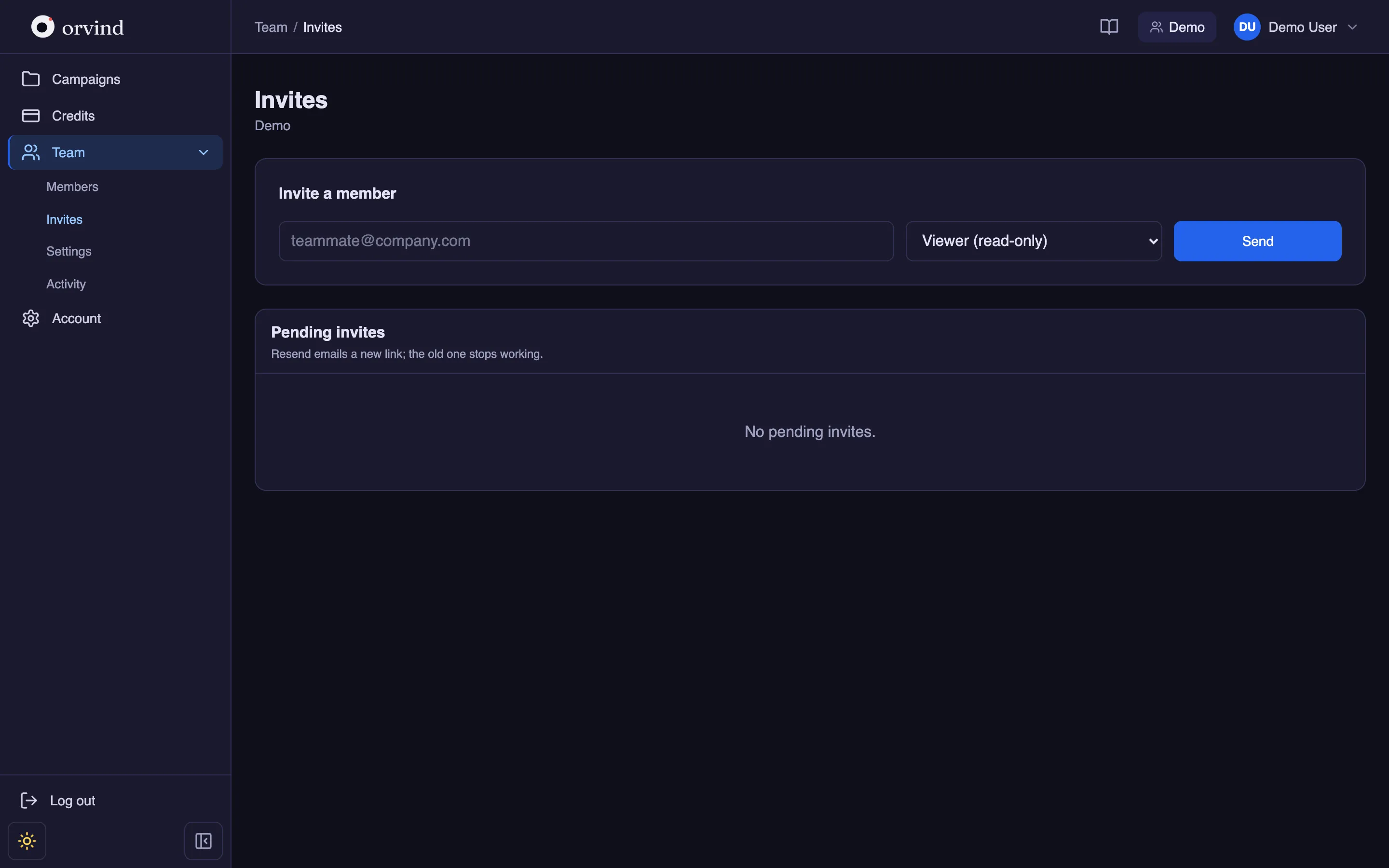
Invite a teammate
Section titled “Invite a teammate”- Under Invite a member, type their email.
- Choose Viewer (read-only) or Admin.
- Click Send.
They get an email with a link. The invite lasts 7 days.
If the email could not be sent, an amber notice shows the invite link with a Copy link button. Copy it and send it yourself. The link is shown only once.
Pending invites
Section titled “Pending invites”Each invite shows Email, Role, Expires and Actions.
- Resend emails a new link. The old link stops working.
- Revoke cancels the invite. Confirm with Revoke invite.
An invite past its date shows an “expired” badge. Click Resend to give it another 7 days.
Accept an invite
Section titled “Accept an invite”Open the link in the invite email.
- You already have an Orvind account with that email: click Sign in, sign in, then click Accept invite.
- You have no account yet: click Sign in, switch to sign up, and create an account with the invited email. Confirm your email, and the link brings you back to accept.
- You are signed in with a different email: sign out, then sign in with the invited address.
After accepting you land on Campaigns in the new team. If you belong to several teams, use the team switcher at the top to move between them.
Invite links from Orvind
Section titled “Invite links from Orvind”You may also get a link from Orvind that lets new people join a team directly. It works for new accounts only and may require an email at your company’s domain. Create your account on that page, confirm your email, and you join the team.