Campaign page
In the app: Campaigns → click a campaign (app.orvind.com/campaign/…)
Everything made for one game lives here: its playable ads, ideas and video ads.
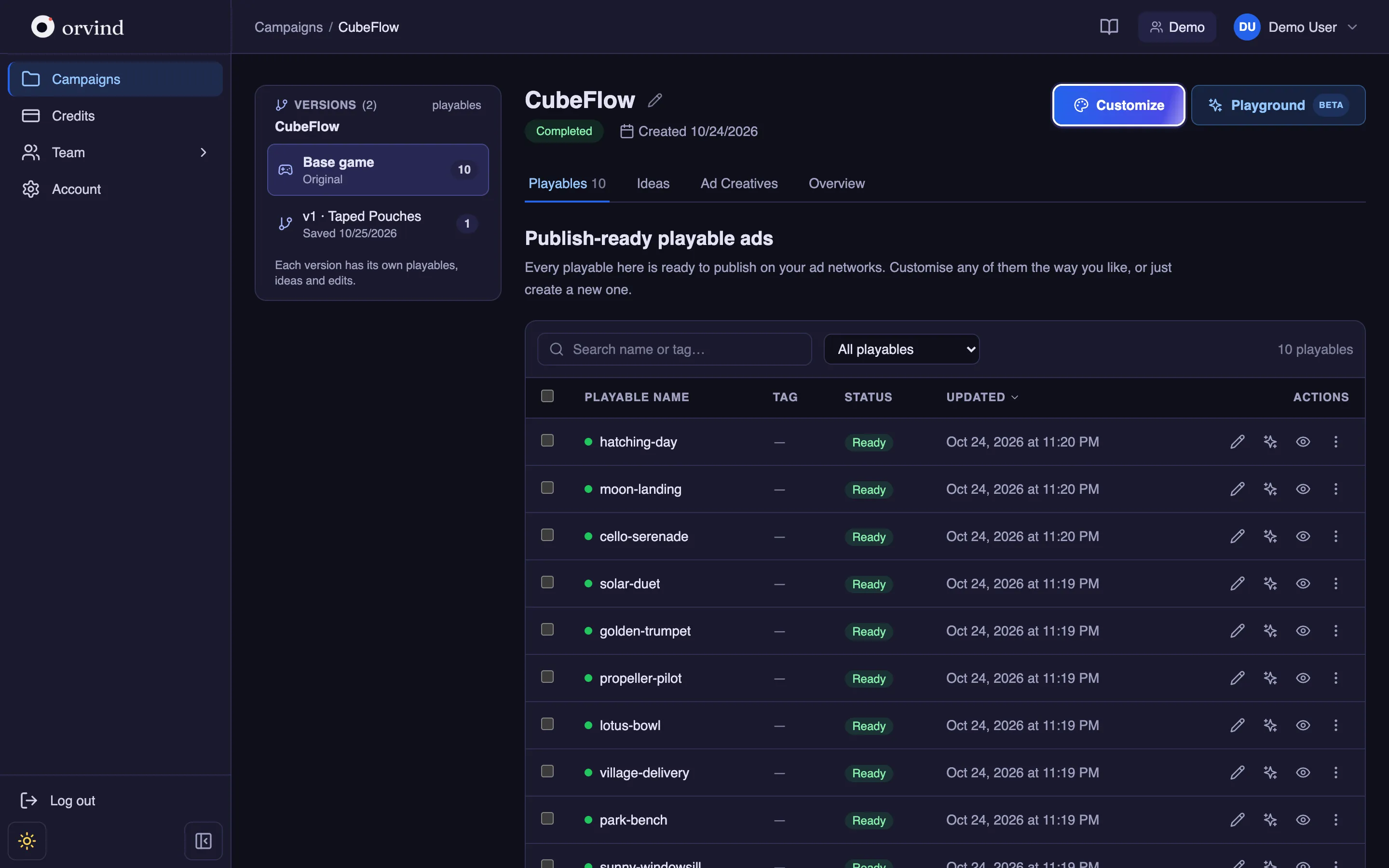
| Tab | Shows |
|---|---|
| Playables | The playable ads. This page describes it. |
| Ideas | Concepts for new versions of the game. See Ideas. |
| Ad Creatives | Video ads. See Ad Creatives. |
| Overview | Campaign details and production progress. See Follow progress. |
You may not see every tab. See Roles and access.
Header
Section titled “Header”- Stage badge: where the campaign is in production.
- Pencil next to the name: rename the campaign. Enter saves, Escape cancels.
- Customize: makes a new playable and opens it in the editor.
- Playground: opens the Playground, where an AI changes the game itself. An Editing… pill means an edit is running. A Ready pill means a finished draft is waiting there.
- Help (question mark icon): opens this page.
Playables
Section titled “Playables”Each playable is a finished ad, ready to publish on your ad networks. Playables share the same game and differ in their settings, such as level, art, difficulty or end card, so you can test which performs best.
Status
Section titled “Status”| Status | Meaning |
|---|---|
| Ready | The latest build finished. The ad is ready to publish. |
| Building | A change is being built. It takes about a minute. |
| Build failed | The last change did not build. The previous build stays in place. |
While a playable is building you cannot open or change it. You can still preview, share and download its last finished build.
Find a playable
Section titled “Find a playable”- Search name or tag… filters the list.
- The status menu shows All playables, Ready, Building or Last build failed.
- Click a column heading to sort.
Row actions
Section titled “Row actions”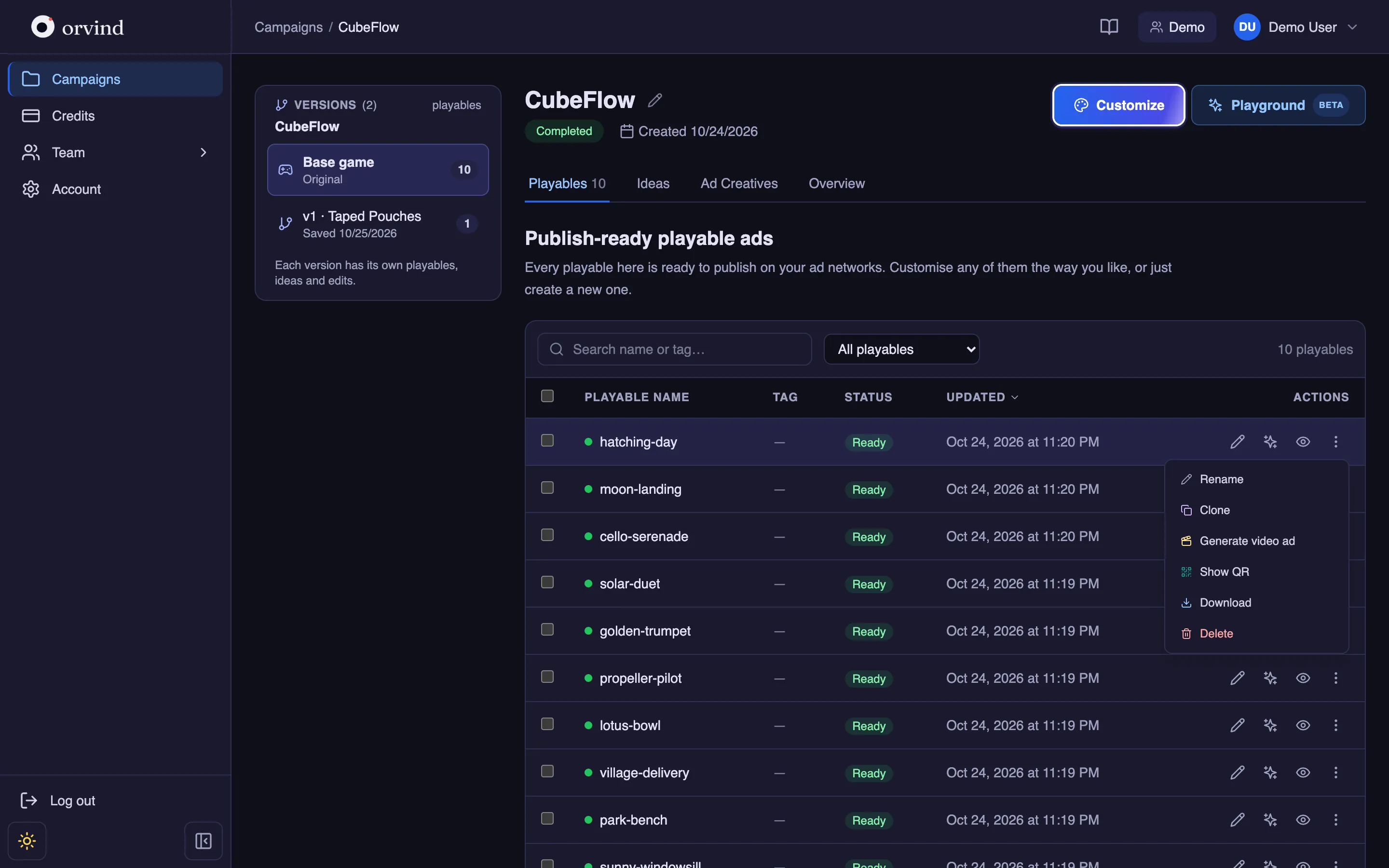
| Button | Does |
|---|---|
| ✎ Customize | Opens the playable in the editor. Clicking the row does the same. |
| ✨ Edit in Playground | Opens the Playground, starting from this playable |
| 👁 Preview | Plays it in a phone frame |
| ⋮ More actions | Rename, Clone, Generate video ad, Show QR, Download, Delete |
Make a new playable
Section titled “Make a new playable”- Click Customize in the header.
- A playable named “Playable N” opens in the editor. Change its settings and save.
Customize works once the campaign has reached the Variant Generation or Completed stage.
To start from an existing playable, use ⋮ → Clone, give the copy a name and click Clone.
Preview a playable
Section titled “Preview a playable”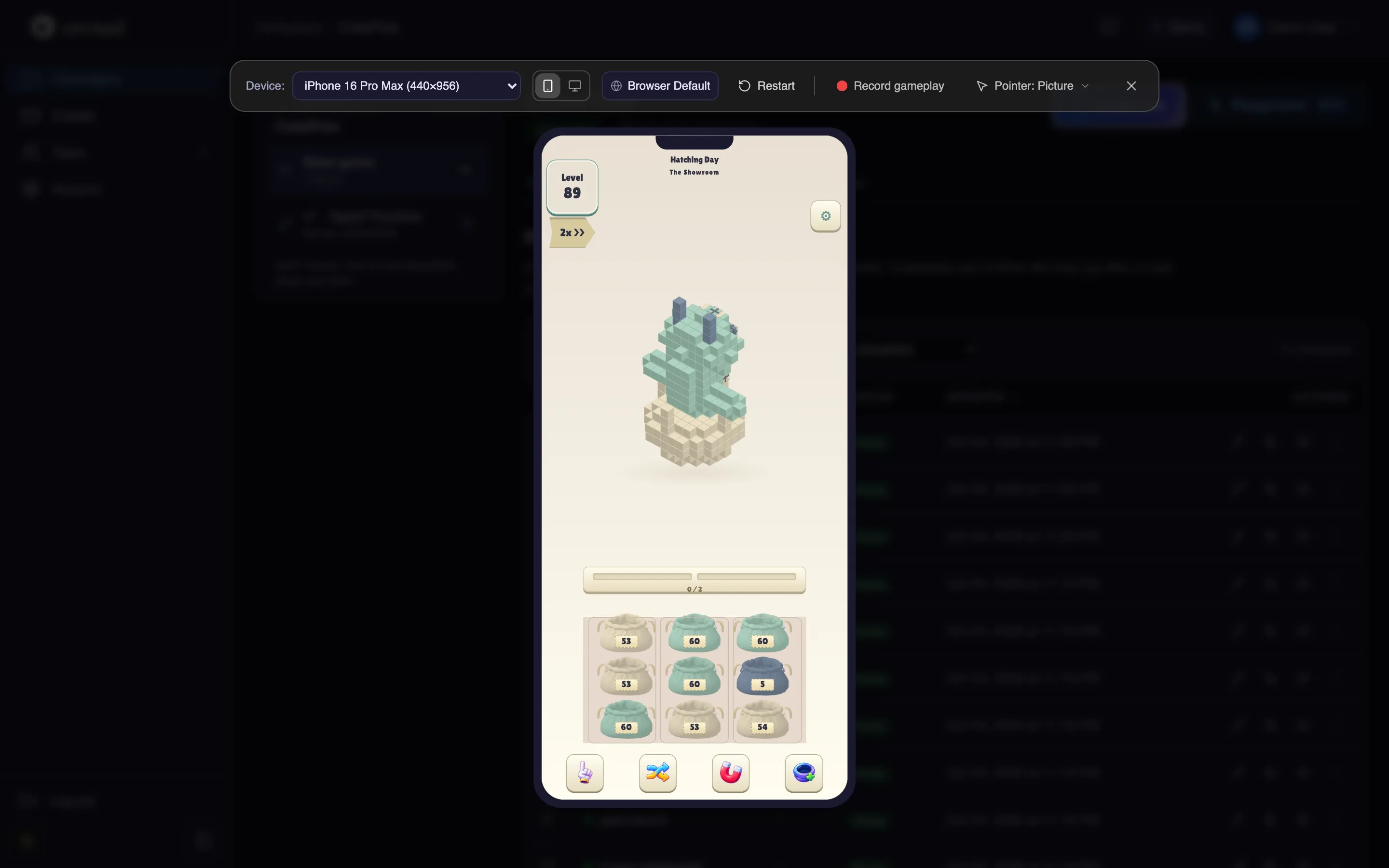
- Click 👁 on its row.
- Pick a device, Portrait or Landscape, and a language.
- Click Restart to play again from the start.
Record gameplay records a video of you playing and saves it to Ad Creatives. It works the same as in the editor: see Record gameplay.
Share a playable
Section titled “Share a playable”- Click ⋮ → Show QR.
- Scan the QR code with your phone, or click Copy to copy the link.
Anyone with the link can open the playable, without signing in. The link expires in 24 hours. See Shared play link.
Download a playable
Section titled “Download a playable”- One playable: ⋮ → Download. You get an HTML file. If the playable has a build for each ad network, the item reads Download (zip) and you get a zip with one folder per network.
- Several playables: tick their checkboxes, then click Download above the list. You get one zip file.
Ad networks accept playables up to 5 MB. A playable over the limit is not built. See Size limit.
Rename, tag or delete a playable
Section titled “Rename, tag or delete a playable”- Rename: ⋮ → Rename. Change the Playable Name and, optionally, the Playable Tag. Tags group playables; search finds them.
- Delete (team admins): ⋮ → Delete, then confirm. This cannot be undone.
- Delete several: tick them, then click Delete above the list.
Make a video ad
Section titled “Make a video ad”Click ⋮ → Generate video ad. It takes about an hour. A clapperboard icon on the row shows progress and turns green when the video is ready in Ad Creatives.
Versions
Section titled “Versions”A version is a copy of the game saved from the Playground. Each version has its own playables, ideas and edits.
When a campaign has versions, a Versions panel lists the Base game and each version as “v1 · name”. Click one to open it.
Follow progress
Section titled “Follow progress”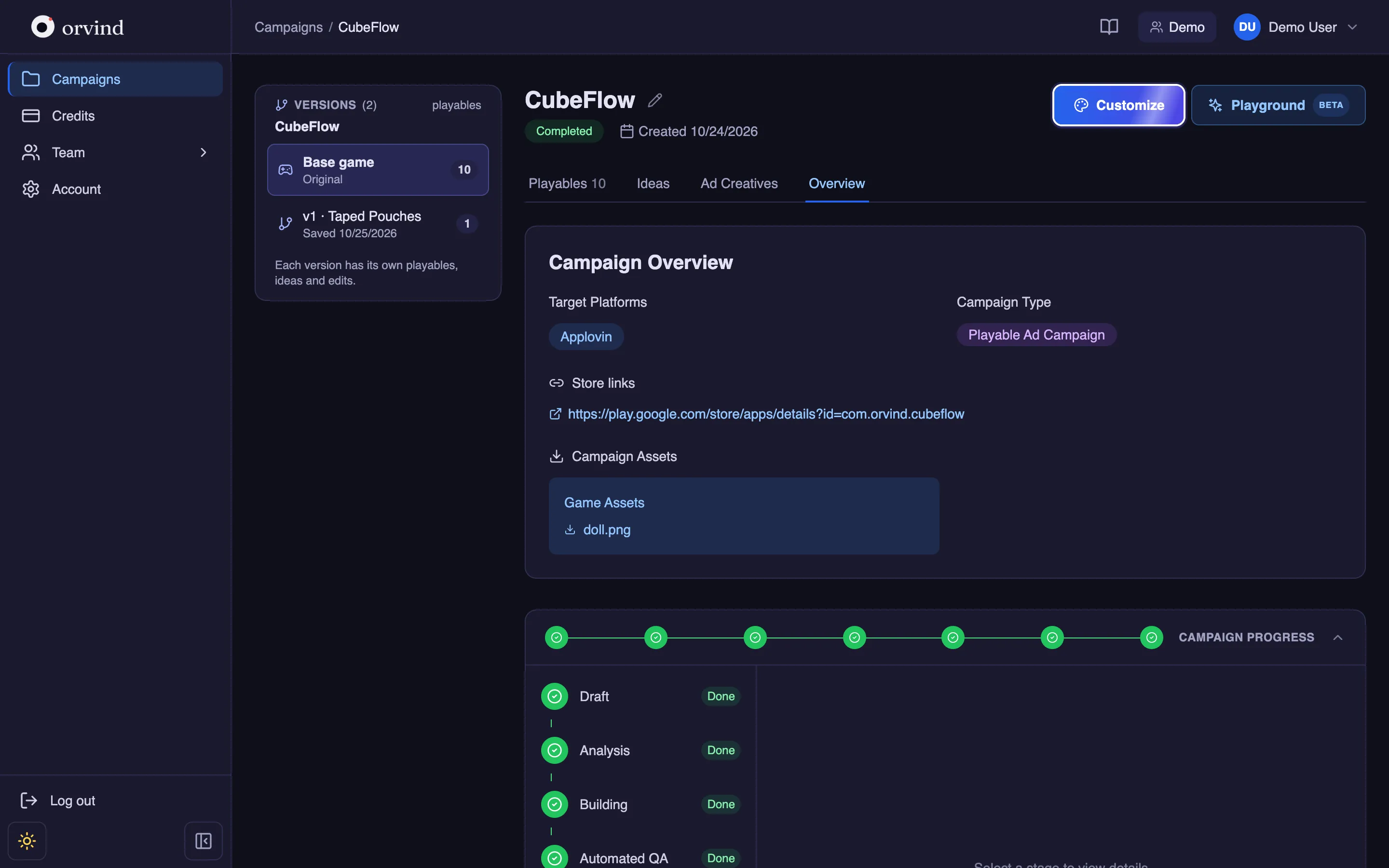
Open the Overview tab and expand Campaign Progress.
| Stage | What happens |
|---|---|
| Draft | The campaign is being set up |
| Analysis | Your brief and assets are analysed |
| Building | The playable ad is generated |
| Automated QA | Automated quality checks run |
| Human QA | A person reviews it |
| Variant Generation | Playables are created |
| Completed | The campaign is ready |
Each stage shows In progress, Needs input, Done or Failed.
When a stage needs your input
Section titled “When a stage needs your input”- Click the stage marked Needs input.
- Read the assistant’s request. Ask it questions in the chat if anything is unclear.
- Attach the files it asks for: Drop a file or click to attach.
- Click Submit & resume stage.
Overview details
Section titled “Overview details”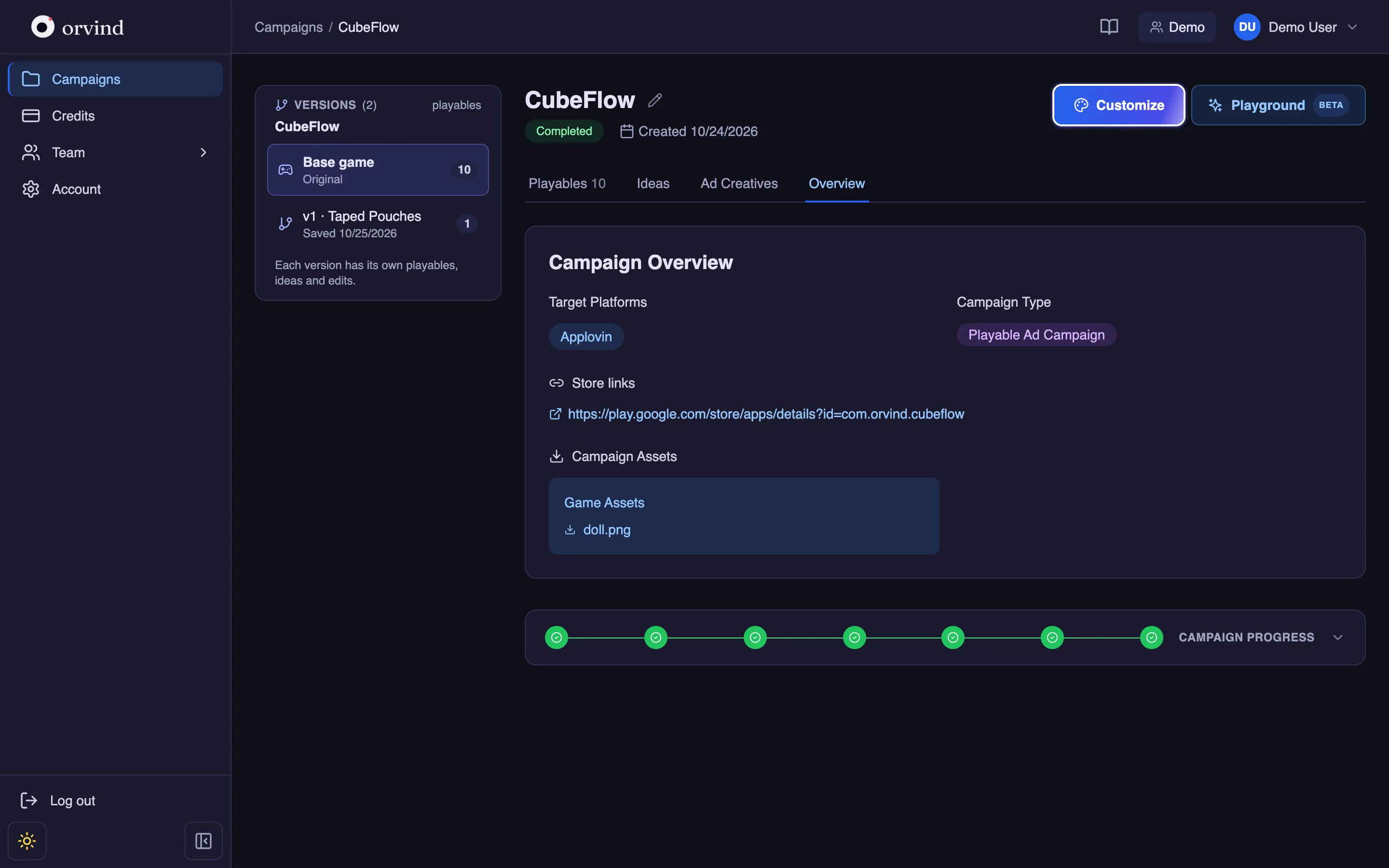
The Overview tab also shows the Target Platforms, the Store links (team admins), the notes you entered when creating the campaign, and the Campaign Assets you uploaded.