

Create a campaign
In the app: Campaigns → Create Campaign (app.orvind.com/campaign/new). Team admins only.
A campaign is one game. You give Orvind the game’s store links, and the Orvind playable engine builds playable ads from it.
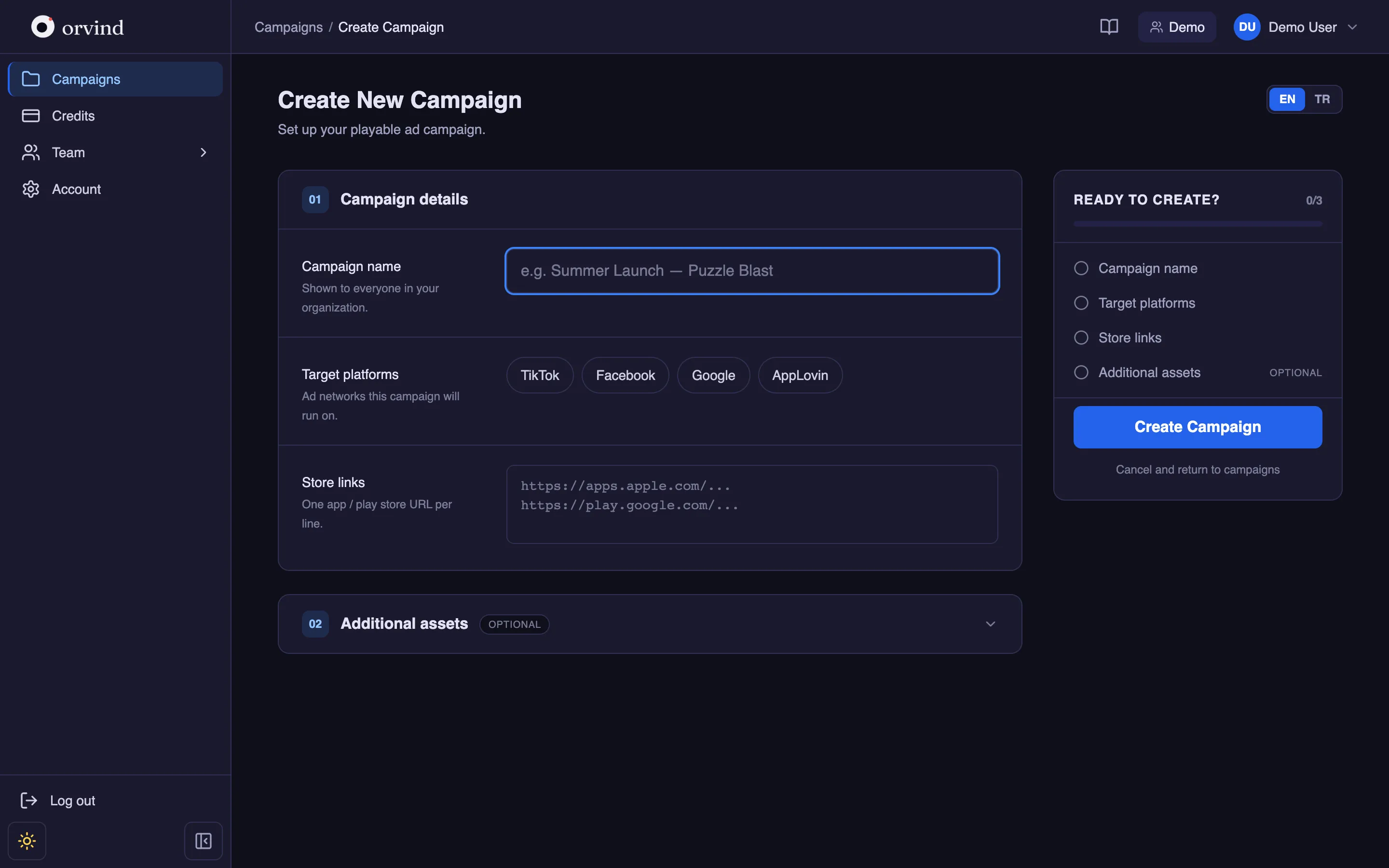
Create a campaign
Section titled “Create a campaign”-
On Campaigns, click Create Campaign.
-
Fill in Campaign details:
Field What to enter Campaign name A name everyone in your team will see Target platforms The ad networks the campaign will run on: TikTok, Facebook, Google, AppLovin. Pick one or more. Store links The game’s App Store or Google Play links, one per line -
Optional: open Additional assets. See below.
-
Click Create Campaign.
The new campaign’s page opens. Orvind starts working on it, and the first playables are usually ready the next day. Follow progress on the campaign page.
The Ready to create? panel on the right ticks off each required item. Click an item to jump to it.
Additional assets (optional)
Section titled “Additional assets (optional)”- Marketing assets: files you want used in the ads, such as characters or models, logos, key art or brand guidelines. Drag files in or click Add files. Images, videos, PDF, DOC, DOCX and TXT are accepted.
- Notes about your assets: tell the engine how to use them, for example “Use the logo on the end card only.” Up to 3,000 characters.
Drafts
Section titled “Drafts”Nothing is saved until you click Create Campaign. If you leave with changes, Orvind asks “Leave without saving?”
If an upload fails while creating, the campaign is kept as a draft with everything you entered. Open it from Campaigns and click Create Campaign again.
To remove a draft, open it and click Delete draft. This removes it for everyone in your team.
Language
Section titled “Language”The EN / TR switch at the top right shows this page in English or Turkish.