

Playground
In the app: open a campaign → Playground (app.orvind.com/campaign/…/playable-editor). Shown once Orvind has opened the Playground for the campaign.
The Playground is for changes the editor’s settings cannot make. You describe what you want in plain words, such as a new mechanic or a different goal. An AI agent changes the game, builds it and play-tests it. Each finished change is a draft you can play, compare, download and save as a new version.
You can also just ask questions or brainstorm. Questions cost nothing.
Layout
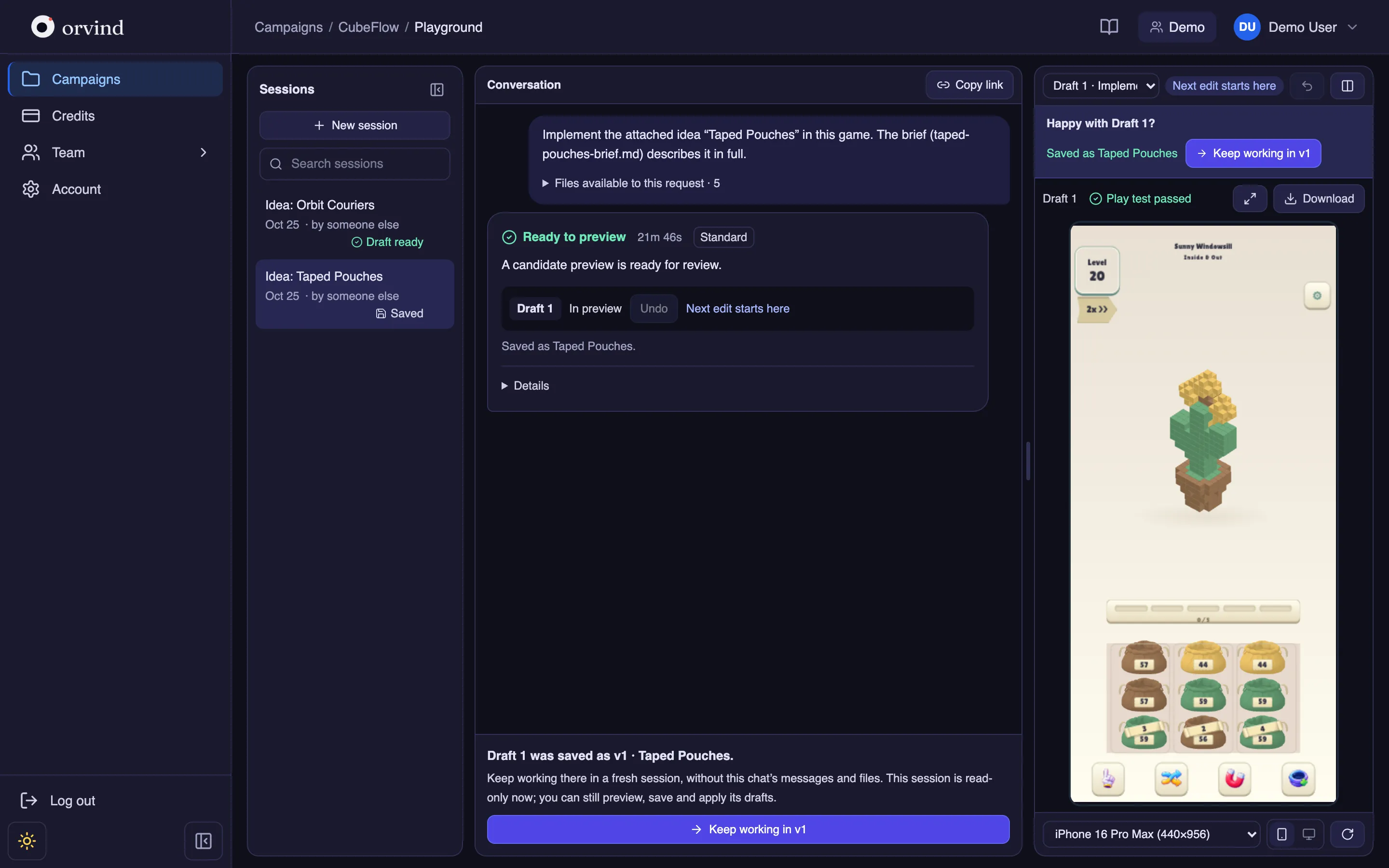
Section titled “Layout”| Area | What is there |
|---|---|
| Sessions (left) | Your team’s conversations on this campaign |
| Conversation (middle) | Messages, plans, progress, and the message box |
| Preview (right) | The game, with draft controls on top |
Drag the divider between conversation and preview to resize. On a phone, switch with Chat and Preview.
Ask for a change
Section titled “Ask for a change”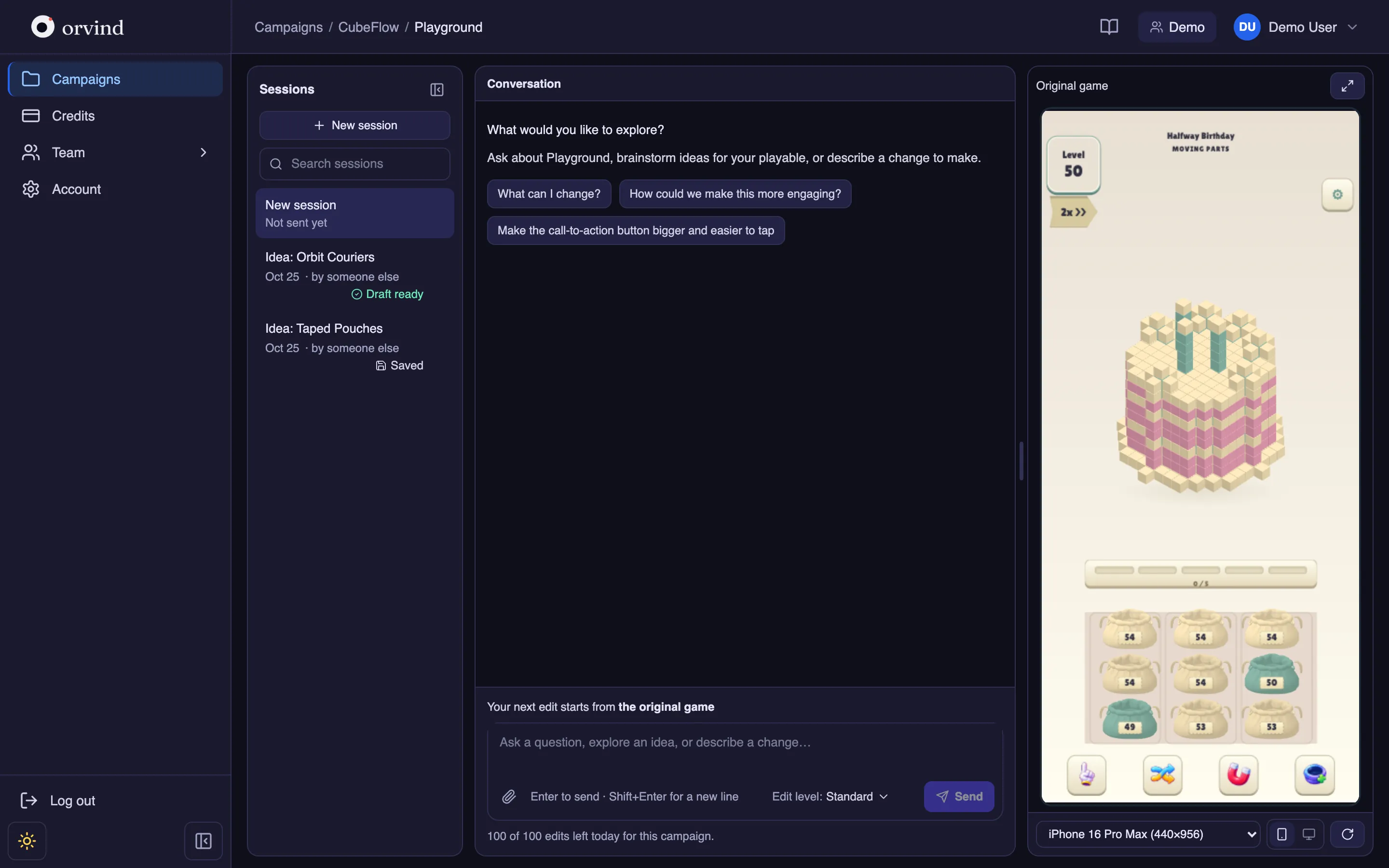
- Type the change in the message box, for example “Make the call-to-action button bigger and easier to tap”.
- Optional: pick an edit level and attach files.
- Press Enter or click Send.
- A plan appears. See The plan.
- Click Start this change.
- Wait. Edits usually take a few minutes; big ones up to 20. You can leave the page. Click Notify me when it’s ready for a browser notification.
- When the card says Ready to preview, play the draft on the right.
Your game does not change until you save. If an edit fails or is cancelled, your game is unchanged.
A message can be up to 8,000 characters. Put longer text in a file and attach it.
Ask a question
Section titled “Ask a question”Type the question and send it. The answer appears in the chat.
If a plan appears and you only wanted an answer, click Just answer. No edit is made.
The plan
Section titled “The plan”Before any change starts, the agent shows what it will do.
- A few things to check before I start: questions with options. The first option is marked Suggested and already selected. Pick another if you prefer.
- Here’s what I’ll do: the steps.
- Want something done differently? (optional): add a note in your own words.
Then choose:
| Button | Result |
|---|---|
| Start this change (or Start with my changes) | The edit starts. This uses credits. |
| Just answer | You get a reply in words. Nothing is changed. |
Only the person who sent the message can choose. Nothing else can be sent in the session until they do.
Edit levels
Section titled “Edit levels”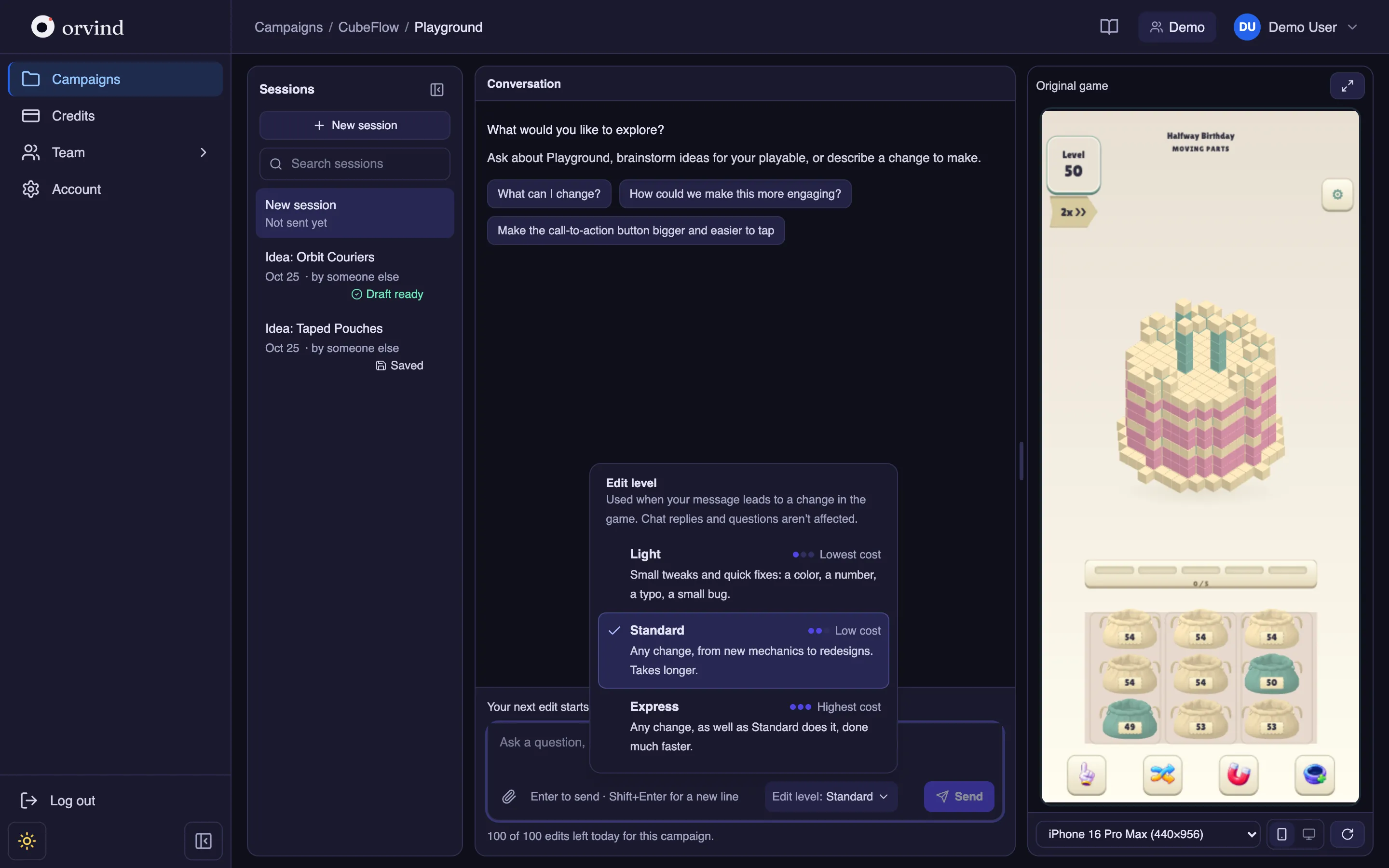
The Edit level menu next to Send sets how a change is made. It does not affect questions.
| Level | For | Cost |
|---|---|---|
| Light | Small tweaks and quick fixes: a colour, a number, a typo, a small bug | Lowest |
| Standard | Any change, from new mechanics to redesigns. Takes longer. This is the default. | Low |
| Express | Any change, as well as Standard does it, done much faster | Highest |
Attach files
Section titled “Attach files”Click the paperclip (Add files), drop files on the page, or paste them. Wait until each file shows Ready before sending.
Attach reference pictures, videos, audio, 3D models or documents the agent should use.
Videos
Section titled “Videos”When you add a video, a window asks which parts to send. The agent studies every second, so send only what matters.
- Drag the two handles, or play the video and click Set start here and Set end here.
- Click Keep this part. You can keep up to 6 parts.
- Click Add this part to message.
Or click Send the whole video.
Mark what to match
Section titled “Mark what to match”To point at one thing in a picture or video:
- Once the file is Ready, click Mark what to match.
- For a video, move to the right moment and click Use this frame.
- Drag a box around the object.
- Optional: name it under What is in the box?
- Click Add to message.
The marked picture is attached and a sentence pointing to it is added to your message.
Files from earlier messages
Section titled “Files from earlier messages”Under the message box, Files from earlier messages lets you tick earlier files to send them again.
While an edit runs
Section titled “While an edit runs”The request card shows the steps Preparing → Editing → Building → Testing, the time so far, and short progress updates from the agent about once a minute.
One edit runs at a time per session. You can still ask questions meanwhile.
Cancel an edit
Section titled “Cancel an edit”- Click Cancel edit.
- Confirm with Cancel edit.
It stops within a few seconds and your game stays unchanged. The work done so far still counts toward your usage. Your request is kept, so you can change it and send it again.
Only the person who asked can cancel.
Drafts and the preview
Section titled “Drafts and the preview”Each finished change in a session is numbered: Draft 1, Draft 2, and so on.
| Control | Does |
|---|---|
| Draft shown in preview | Picks which draft, or the Original game, to play |
| Compare | Shows two drafts side by side |
| Undo last change | The next edit starts from the draft before |
| Redo | Takes the undo back |
| Continue from this draft | The next edit starts from the draft shown |
| Download | Saves the draft as one HTML file |
| Device menu, orientation, Restart | Change how the preview is shown |
Undo deletes nothing. Every draft stays in the list. You only choose which one your next edit builds on.
“Passed our automatic play test” means the draft builds and runs. Play it yourself to check that it does what you wanted.
Save a draft
Section titled “Save a draft”Show the draft in the preview. The bar above it asks “Happy with Draft N?”
Save as a new version
Section titled “Save as a new version”- Click Save as new version.
- Optional: give it a Name.
- Click Save.
Orvind makes a new version of the campaign with its own playables, ideas and edits. When it is ready, you are taken to the new version’s Playground in a fresh session. The old session becomes read-only. See Versions.
Save to this version
Section titled “Save to this version”Inside a saved version you can also click Save to this version → Replace version. This replaces the version’s game with the draft and keeps the previous game as a backup. Saving takes 1 to 2 minutes; then each playable of the version is rebuilt, which takes a few more minutes.
A playable that has its own value for a setting keeps that value.
Apply to other games
Section titled “Apply to other games”To put a change into the original game or other versions:
- Click Apply to…
- Tick the games.
- Click Apply to N games.
Where the change fits, the game gets it straight away and its playables are rebuilt. Where the game was changed in the same place, the agent makes the change there and it waits in that game’s Playground for you to check and save. Each game’s previous files are kept as a backup.
Sessions
Section titled “Sessions”A session is one conversation. Everyone on the campaign sees the same sessions.
- New session starts a blank one.
- Search sessions finds one by name.
- Each session shows Running, Draft ready, Saved or Failed.
- The … menu on a session offers Rename and Archive.
- Copy link copies a link to the open session for teammates.
When the game was updated
Section titled “When the game was updated”If the game changed after a session started, the session cannot make more changes. Click Continue in a new session. The new session keeps the chat, and what you typed moves with you.
Credits and limits
Section titled “Credits and limits”- Edits use your team’s credits. An edit is charged when it finishes. Failed edits are free. Each finished edit shows the credits it cost.
- The credits chip by the message box shows your team’s balance.
- A campaign has a daily number of edits. The line under the message box shows how many are left. Questions are not limited.
If an edit fails
Section titled “If an edit fails”Every failure leaves your game unchanged.
Each failed request says what went wrong and offers a button to fix it: Retry same request, Edit request, Try again with Standard, Check again or Continue in a new session.
For anything else, open Details on the card, click Copy support ID and send it to hello@orvind.com.
View-only
Section titled “View-only”If the Playground is view-only for you, you can open sessions and play drafts but not send, save or apply. If you see “Playground isn’t available for this campaign”, it has not been opened for the campaign: contact your Orvind team.