

Sign in and sign up
In the app: app.orvind.com/signin and app.orvind.com/signup
Create an account
Section titled “Create an account”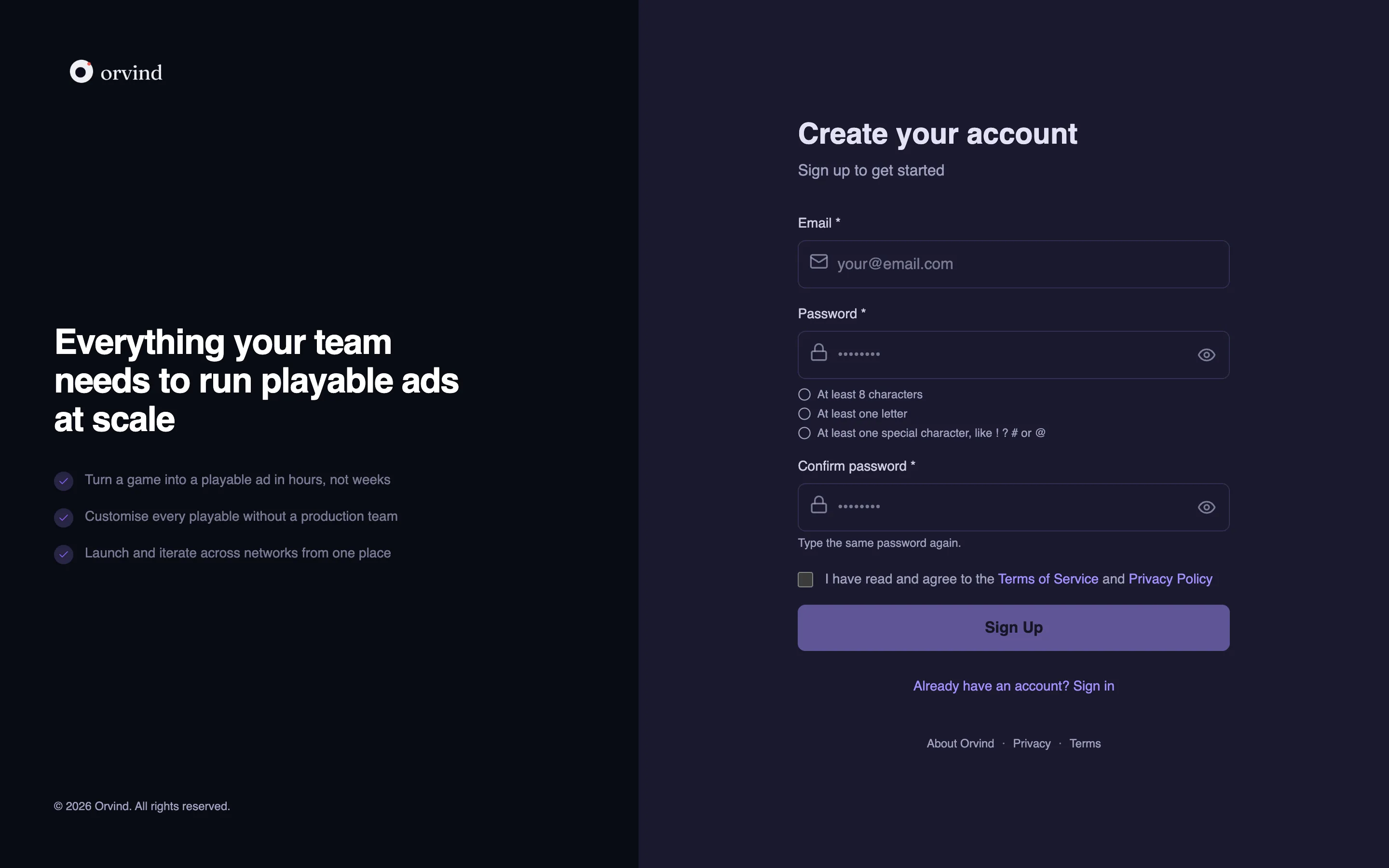
- Open app.orvind.com/signup.
- Enter your Email.
- Choose a Password. The checklist under the field turns green as you meet each rule:
- At least 8 characters
- At least one letter
- At least one special character, like ! ? # or @
- Type it again in Confirm password.
- Tick the box to agree to the Terms of Service and Privacy Policy.
- Click Sign Up.
- Open the confirmation email and click its link.
- Sign in.
If the email does not arrive, check your spam folder, then click Resend confirmation email on the “Account Created Successfully!” screen.
If a teammate invited you, start from the link in the invite email instead. See Invites.
Sign in
Section titled “Sign in”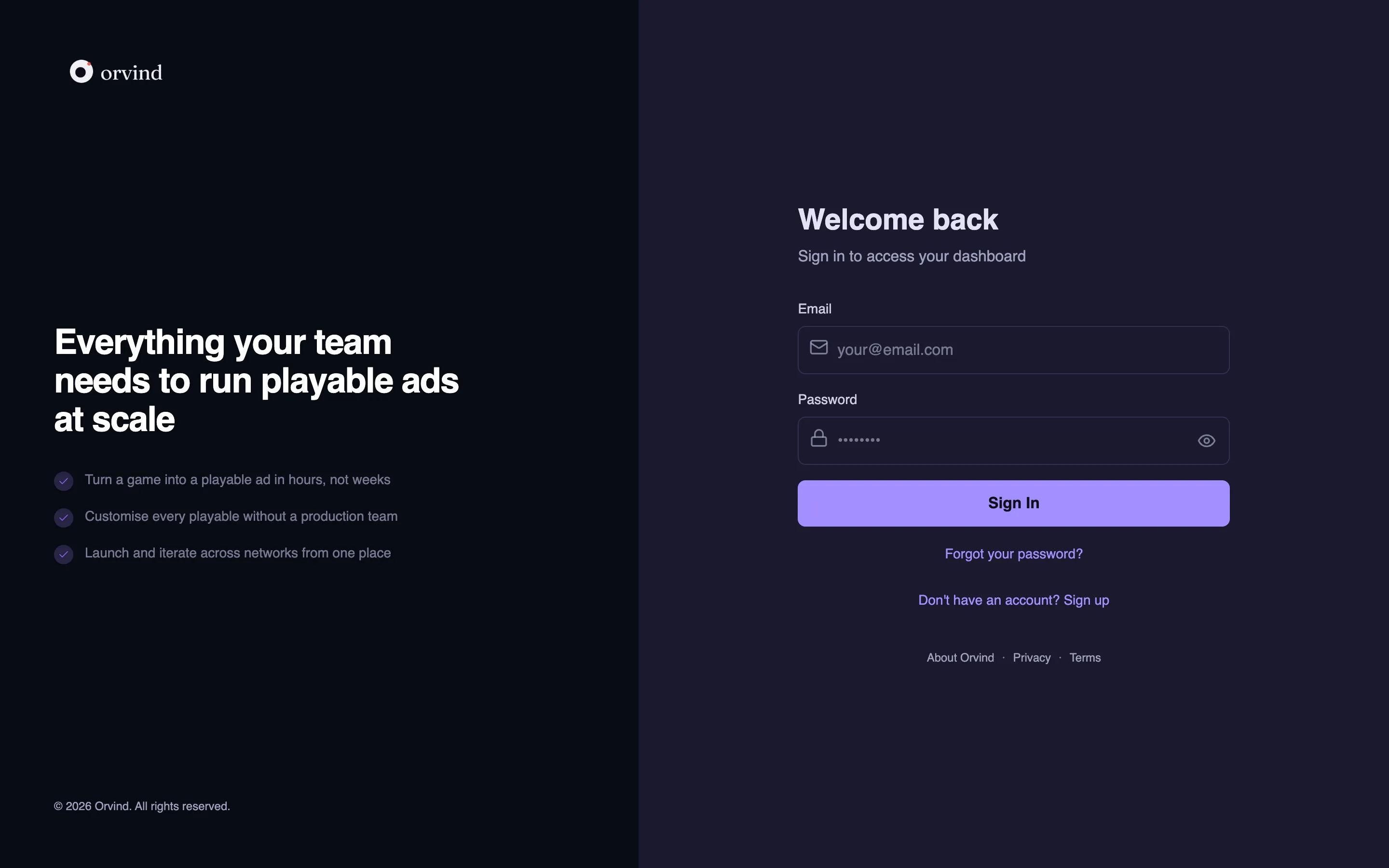
- Open app.orvind.com/signin.
- Enter your Email and Password.
- Click Sign In.
You land on Campaigns, or on the page you were trying to open.
Complete your profile
Section titled “Complete your profile”The first time you sign in, a Complete Your Profile window opens. It cannot be closed until you finish it or sign out.
| Field | Notes |
|---|---|
| Full Name | Required. |
| Phone | Optional. Pick the country code, then type the number. |
| Company Name | Becomes the name of your team. If you joined by invite it is already filled and locked. |
| Role/Title | Optional. |
| How did you hear about us? | Optional. |
Click Complete Profile. Unless you joined by invite, this creates your own team.
Reset a forgotten password
Section titled “Reset a forgotten password”- On the sign-in page, click Forgot your password?
- Enter your email and click Send Reset Link.
- Open the email in the same browser where you asked for it. Reset links only work there.
- Enter the new password twice and click Reset Password.
You are signed in and taken to Campaigns.
If the link has expired or was already used, the page says so and offers Send a new link.