
Campaigns
In the app: sidebar → Campaigns (app.orvind.com/dashboard)
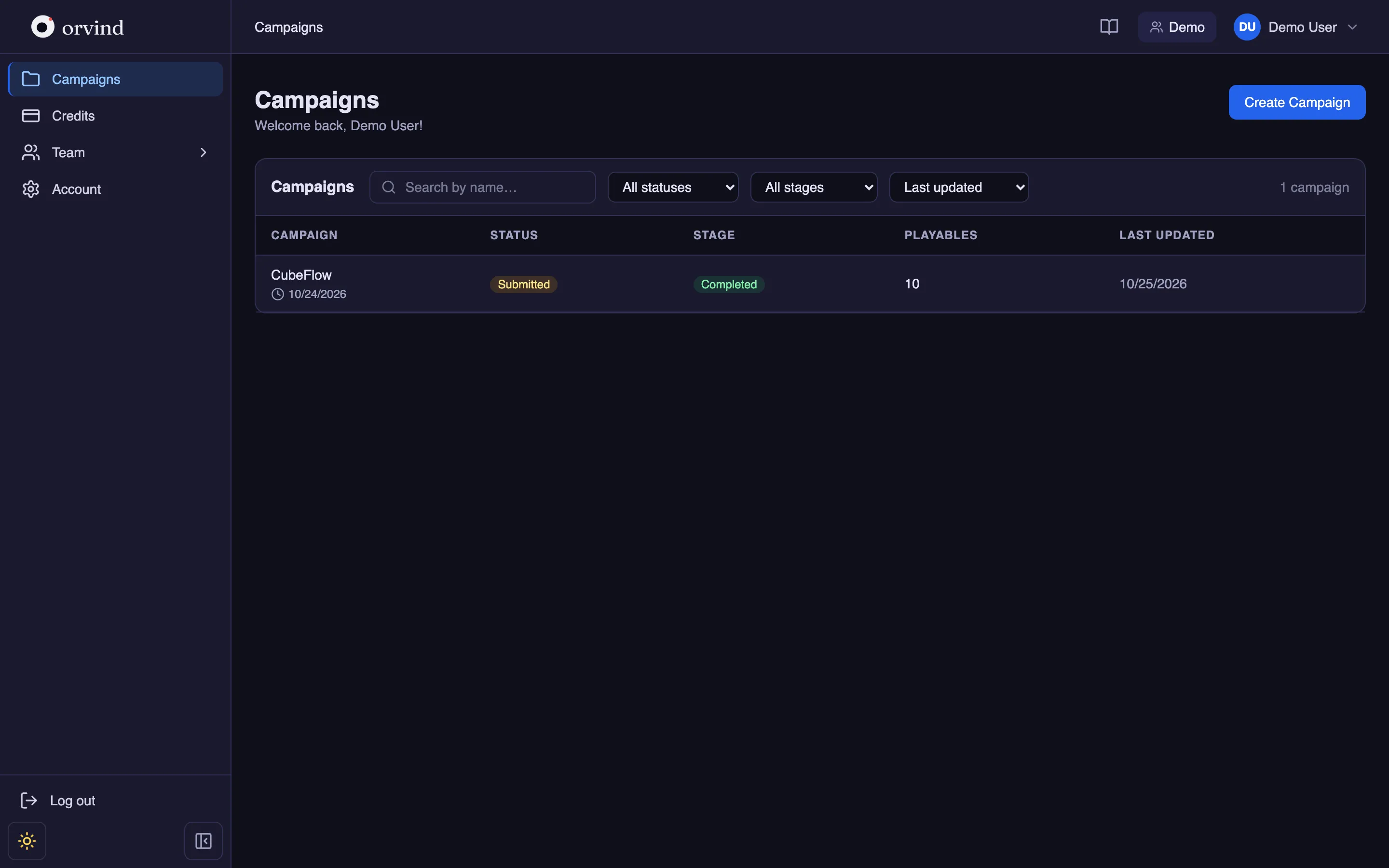
Campaigns is the home page. It lists every campaign of the team you are currently in. The list refreshes about once a minute.
Open a campaign
Section titled “Open a campaign”Click its row. A campaign that is still a draft reopens Create Campaign so you can carry on. Cmd-click or Ctrl-click opens it in a new tab.
The list
Section titled “The list”| Column | Shows |
|---|---|
| Campaign | Name and creation date |
| Status | A status badge, for example Draft or Active |
| Stage | Where the campaign is in production. See Campaign page. |
| Playables | How many playables it has |
| Last updated | When it last changed |
Find a campaign
Section titled “Find a campaign”- Search by name… filters as you type.
- All statuses shows only one status.
- All stages shows only one stage: No stage yet, Draft, Analysis, Building, Automated QA, Human QA, Variant Generation or Completed.
- The sort menu offers Last updated, Newest first and Name (A–Z).
If nothing matches, click Clear filters.
Create a campaign
Section titled “Create a campaign”Click Create Campaign. See Create a campaign.
The button is disabled for viewers (“Only team admins can create campaigns”) and for accounts without access to create campaigns.
Around the page
Section titled “Around the page”These are on every signed-in page.
- Sidebar: Campaigns, Plan & credits or Credits, Account, Log out, the light/dark switch, and a button to collapse the sidebar. Admins also see Team, which contains Members, Invites, Settings, and Activity.
- Help button (question mark icon, top right): opens the docs page for the page you are on.
- Team switcher (top right): shows your current team. If you belong to more than one, click it to switch.
- Account menu (your initials): Account, Take the tour, Sign out.
Guided tours
Section titled “Guided tours”A short tour starts the first time you open Campaigns, a campaign and the editor. To see one again, open the account menu and click Take the tour.