
Editor
In the app: open a campaign → click a playable, or click Customize (app.orvind.com/campaign/…/customize/…)
The editor changes one playable. You change settings on the right, watch the result in the phone preview in the middle, then save. Nothing changes for players until you save.
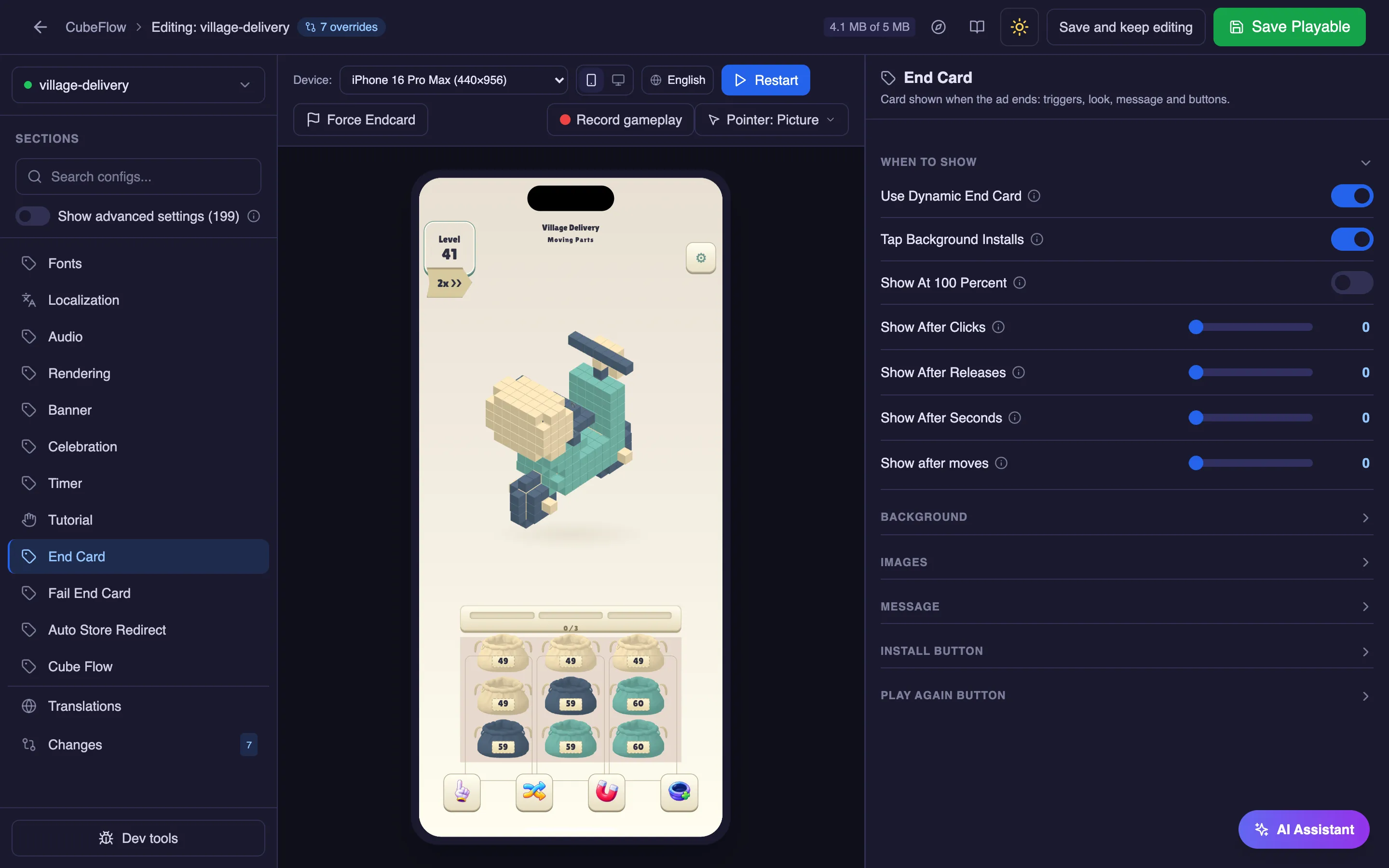
Layout
Section titled “Layout”| Area | What is there |
|---|---|
| Header | Back arrow, campaign and playable name, overrides chip, size, Take the tour, help, Discard changes, Save and keep editing, Save Playable |
| Left | Playable switcher, Sections with search, Translations, Changes |
| Middle | Preview toolbar and the game in a phone or tablet frame |
| Right | The settings of the section you picked. Drag its left edge to resize. |
| Bottom right | AI Assistant button |
On small screens the areas stack: sections, preview, settings.
Change a setting
Section titled “Change a setting”- Pick a section on the left, or type in Search configs…
- Change the value on the right.
- Look at the preview. Most changes show at once.
- If the setting has a Rebuild badge, click Rebuild to apply changes in the preview toolbar. It takes about a minute.
- Save.
A changed setting shows an Unsaved badge. The save button counts your changes.
Hover the ⓘ next to a setting for its description and default value.
Kinds of settings
Section titled “Kinds of settings”| Kind | How to use it |
|---|---|
| Number | Drag the slider, or click the value to type an exact number. Enter confirms, Escape cancels. |
| On/off | Click the switch. |
| Choice | Pick from the dropdown. |
| Colour | Use the colour picker or type a hex code such as #ff0000. |
| Text | Type in the box. The expand button opens a larger editor. |
| File | See Replace an image or sound. |
| List | Add item adds a row. The bin removes one. |
| Translatable text | Open the card to edit the text per language. Add language adds one. |
Advanced settings
Section titled “Advanced settings”Show advanced settings reveals settings for the game’s internal mechanics, such as physics, timings and difficulty. Most creatives do not need them. It is off by default.
| To undo | Do this |
|---|---|
| One unsaved change | Changes → Not saved yet → undo icon |
| All unsaved changes | Discard changes in the header |
| One saved override | Changes → Saved overrides → reset icon, then save |
| All saved overrides | Changes → Reset all, click again to confirm, then save |
Replace an image or sound
Section titled “Replace an image or sound”- Find the file setting.
- Choose one of the two tabs:
- Library: pick a file already uploaded to this campaign.
- Upload: drop a file, or click browse. The file joins the library and is selected.
- Save.
To go back to the game’s own file, click Reset to default.
The Upload tab shows which file types and sizes each setting accepts.
Large files make the playable larger. See Size limit.
Preview
Section titled “Preview”| Control | Does |
|---|---|
| Device: | Picks the phone or tablet frame |
| Portrait / Landscape | Turns the device |
| Language button | Shows the playable in another language |
| Restart | Plays the ad again from the start with your current changes |
| Force Endcard | Jumps to the end card. Only for games that support it. |
| Edit HUD | Opens the HUD designer. Only for games that support it. |
| Record gameplay | Records a video |
| Rebuild to apply changes | Appears when a change needs a new build to show |
Device, orientation and language only change the preview, not the playable.
The preview never opens the app store. When the game would open it, a note appears above the phone, such as “Store opened: store button tapped” or “Store opened automatically: after 3 taps”.
There is no autosave.
- Click Save Playable to save and return to the campaign, or Save and keep editing to stay.
- In the dialog, check the Playable Name. Optionally add a Playable Tag.
- Click Save.
Saving builds the playable again. This takes about a minute. With Save and keep editing the header shows “Saved · building…” and then “Saved and built”.
Team admins also see Use these configs as defaults for future playables in this campaign. Tick it to make new playables start from this one’s values.
Saving always updates the playable you have open. To make a new playable, go to the campaign page and click Customize, or clone one.
If you leave with unsaved changes, Orvind asks “Leave without saving?” Click Keep editing to stay.
The save buttons are disabled while the playable is building, while a setting has an error, and while a rebuild is waiting.
Size limit
Section titled “Size limit”Ad networks accept playables up to 5 MB. The header shows the size of the last build, for example “3.2 MB of 5 MB”. It turns amber near the limit and red over it.
A playable over 5 MB is not built. Your changes are saved and the last build stays in place. Use a smaller image, video or sound, or remove one you uploaded, then save again.
AI Assistant
Section titled “AI Assistant”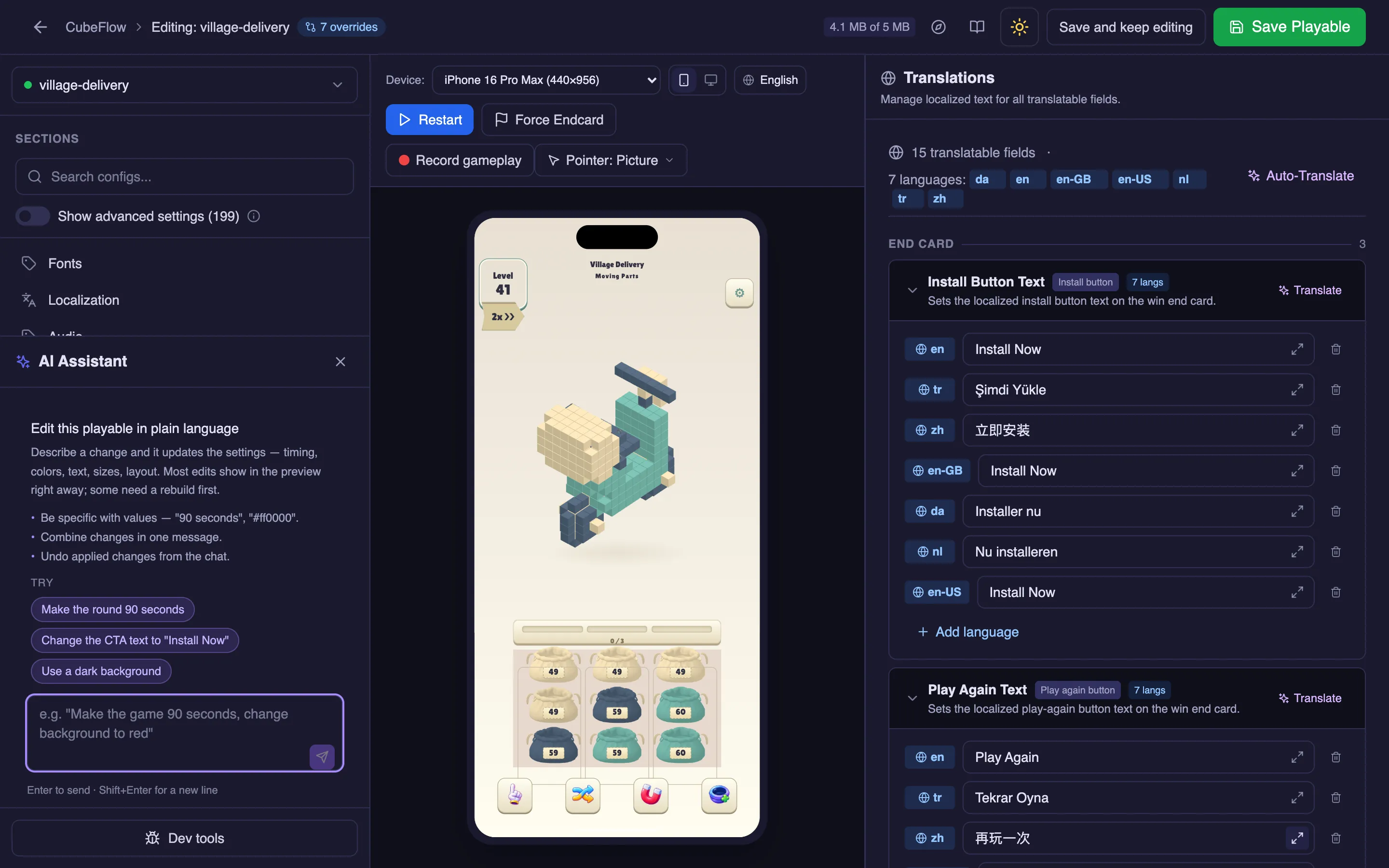
The AI Assistant changes settings from a plain-language request and can tell you where a setting is.
- Click AI Assistant at the bottom right.
- Type a request, for example “Make the round 90 seconds” or “Change the CTA text to Install Now”.
- Press Enter.
Tips: give exact values (“90 seconds”, “#ff0000”), and combine several changes in one message.
| Reply | What you can do |
|---|---|
| “N changes applied” | The changes are in the editor, unsaved. Click Undo to take them back. Save to keep them. |
| An answer with settings | Click Show me to jump to a setting. |
| “Rearrange the sections?” | Click Apply to move settings between sections for everyone on this campaign. Values stay the same. |
| “This needs a change to the game itself…” | Click Open in Playground. The Playground opens with your request ready. |
Each playable has its own conversation. The bin clears it.
Changes
Section titled “Changes”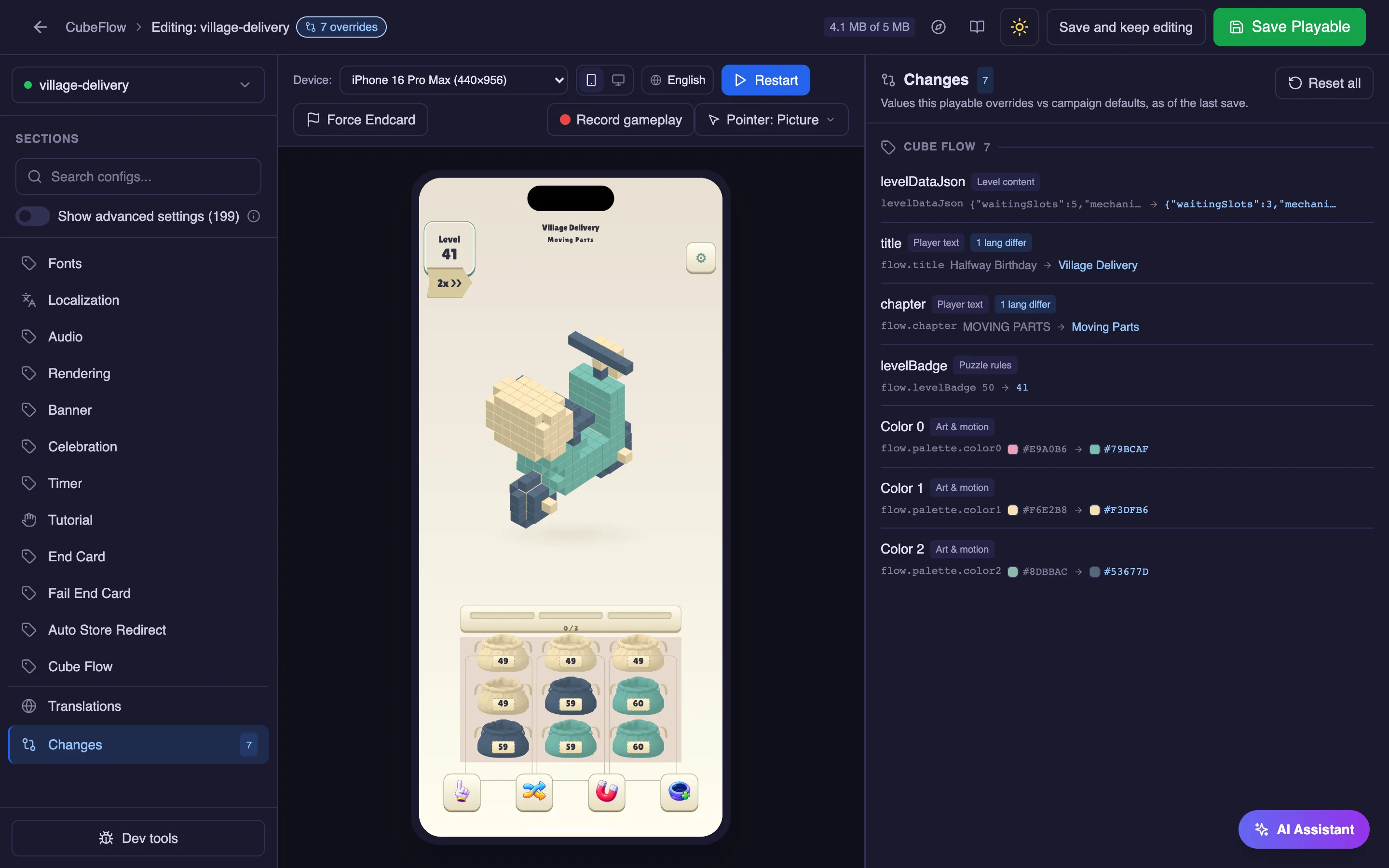
Changes on the left lists how this playable differs from the campaign’s defaults.
- Not saved yet: your edits since the last save.
- Saved overrides: values saved on this playable that differ from the campaign default. Click a row to jump to the setting.
The overrides chip in the header shows the same count.
Translate texts
Section titled “Translate texts”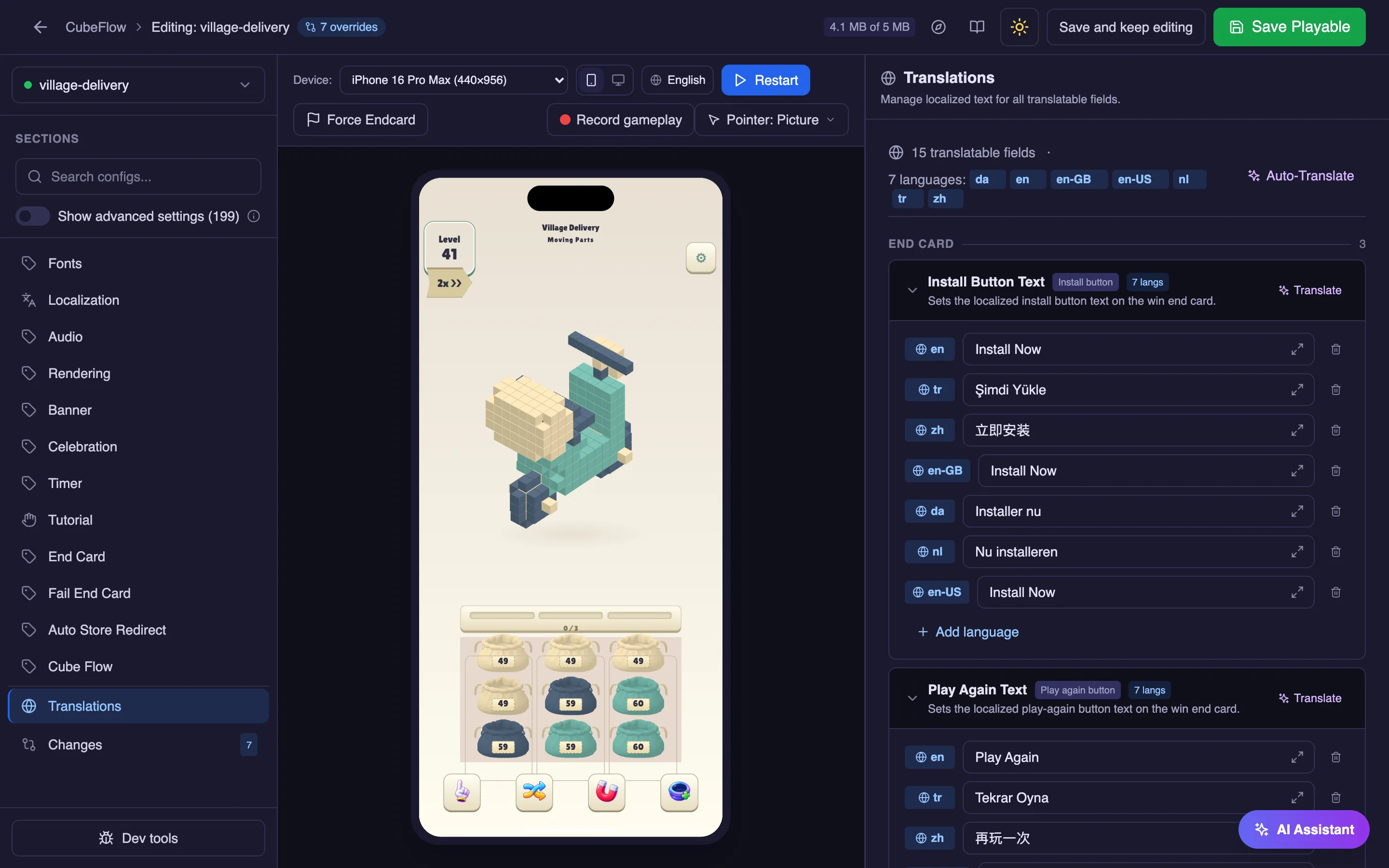
- Click Translations on the left.
- Click Auto-Translate for all texts, Translate on one text, or a language chip for one language.
- Pick the Source language and tick the Target languages.
- Leave Only fill empty translations (skip existing) ticked to keep translations you already have.
- Click Translate.
- Save.
Arrange the HUD
Section titled “Arrange the HUD”For games that support it, you can move, resize and hide HUD items such as the score or timer.
- Click Edit HUD. The game pauses and a box appears over each HUD item.
- Drag a box to move it. Drag a corner to resize it. Arrow keys nudge it; hold Shift for bigger steps.
- In the HUD layout panel, use the eye icon to hide or show an item, the Move to grid to snap it to a corner, edge or the centre, and Reset to put it back.
- Turn the device to arrange the other orientation. Portrait and landscape are separate.
- Click Done Editing HUD.
- Save.
Some games also offer New layout for screen shapes… in the Editing dropdown. Use it to give certain screen shapes their own arrangement.
Record gameplay
Section titled “Record gameplay”You can record yourself playing and save the video to the campaign’s Ad Creatives. This works in desktop browsers.
- Save the playable first.
- Optional: click Pointer: to choose how the mouse pointer looks: Picture (a hand or your own picture), None or Normal.
- Click Record gameplay.
- When the browser asks what to share, choose this tab.
- After the 3-second countdown, play the ad.
- Click Stop. A recording stops by itself at 3 minutes.
- Click Save to Ad Creatives, Re-record or Discard.
Click Stop sharing when you are done recording.
Switch playable
Section titled “Switch playable”Click the playable’s name at the top left and pick another from Playables in this campaign. The dot shows whether it is Ready, Building or Failed.
View-only
Section titled “View-only”If you see a View only banner, you can try changes in the preview but cannot save them. See Roles and access.